Vahlink user guide
Vahlink connects hotels and tour agents who need taxis with taxi businesses and their drivers. This guide shows how to use each part of the app, with screenshots of the real screens. Click any picture to see it full size.
Everyone
Getting started
Create an account
- Go to vahlink.com/login and choose your account type under “Or register as”: Hotel, Tour Agent, Taxi Business or Franchise Partner.
- Fastest: press Sign up with Google or Sign up with Facebook at the top of the form. Your name and email are filled in and you don't need a password. Then add your business details and submit.
- Or fill in the form with your email and a password.
- New accounts get a ₹500 welcome bonus in the wallet, valid for one year.
Location and notifications
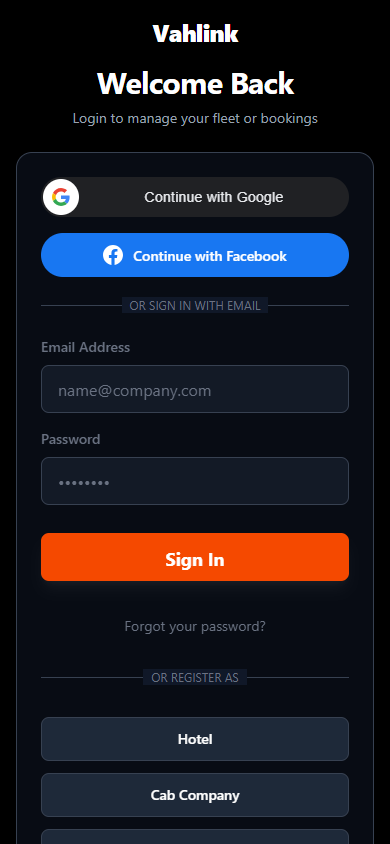
After you log in, Vahlink asks for your location. The app stays on a Turn on location screen until location is allowed and switched on, because trips are matched by where you are (drivers also share their live position while the app is open). If you blocked it, tap the lock / settings icon next to the address bar (or the app settings), set Location to Allow, then press Try again.
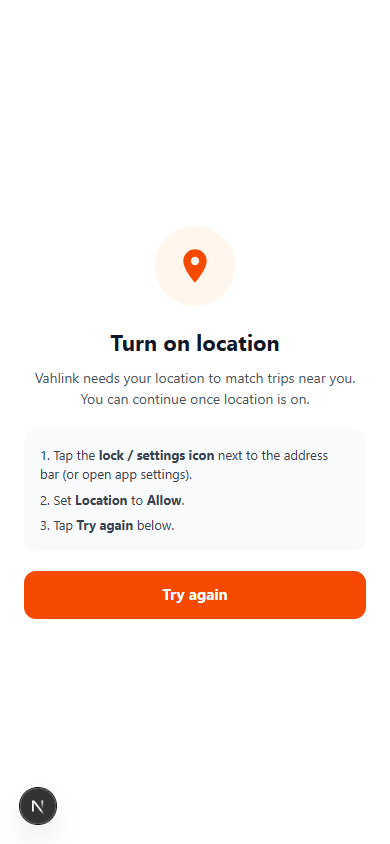
Then press Turn on on the Turn on notifications card to get new bookings, matches and trip updates on your phone even when Vahlink is closed. You can switch it off, or send yourself a test, under My account → Alerts & notifications → Phone notifications. In the Android app they arrive as normal phone notifications with the Vahlink icon; if the app was already allowed to notify, it turns on by itself. Every bell notification also comes as a phone notification. Tapping one (in the bell or the phone) marks it read and it stays in the list; swipe it sideways (or tap ✕) to remove it for good. Swiping it away in the phone's tray removes it from the bell too. On iPhone, first add Vahlink to the Home Screen (Share → Add to Home Screen), then open it from there.
When a match happens — a taxi offers on your request, a hotel picks your offer, a booking is confirmed or a new request fits your route — the app plays a car-remote “chirp-chirp” followed by a short chime while it is open. Tap anywhere on the page once after opening the app so the phone allows the sound.
Invited by someone?
Invite links look like vahlink.com/join?ref=CODE. Open the link, pick your account type and sign up — the person who invited you is credited.
Hotels & tour agents
Booking taxis
- Open Bookings → New booking. The pickup is filled with your current location; type another place, or tap Adjust pin to drag the pin on the map (or enter latitude / longitude). The same works for a taxi owner's Available From. Enter the drop (pick from the suggestions), passenger details and the vehicle type.
- Choose when: a date and time, any time on a date, or tomorrow. You then see the taxis on your route with their price, and choose one.
- Press Post Taxi Request: a summary of everything you entered opens. Check it and press Confirm & post request, or Edit to change something.
- After you post, the app opens that request's Matches. Compare offers and select one — each offer shows your Requested price and whether it is above or below it; once booked you see the Expected and the Accepted price. The taxi business confirms and assigns a driver and vehicle; you can follow the trip under Live Tracking.
- My Trips lists your booked taxis with the operator and driver (tap to call). A trip whose date has passed without being closed shows Date expired: press Mark completed (or the ⋮ menu → Mark trip completed) and rate it. The ⋮ menu also has call, track and cancel.
Tour agents use exactly the same screens — sign up at Register as → Tour Agent.
Taxi businesses
Running your fleet
Add drivers and taxis
- Go to Drivers → Add driver and Vehicles → Add vehicle.
- New drivers and taxis show Awaiting verification until the Vahlink team approves them. If anything is missing, the reason is shown on the card (for example “Driving licence copy missing”).
- Only approved drivers and taxis can be assigned to trips.
Win and run trips
- Requests / Offers: you see a hotel request only when one of your posted routes fits it — same day, the pickup and the drop both on the route, in the direction the car is going, and the car suits the vehicle type and passengers. The card shows which route and car fits. Post one route per car. A Return Taxi route A → B also matches trips on the way back (B → A), so a car posted Trivandrum → Fort Kochi can take Fort Kochi → Trivandrum. Matching uses the map position (latitude / longitude), not the place name — “Alleppey” and “Alappuzha”, or “Trivandrum” and “Thiruvananthapuram”, match the same. A pickup within your Service Radius of the start (or of the end, for the trip back) also fits.
- Availability / Routes: post return trips and empty seats to get matched.
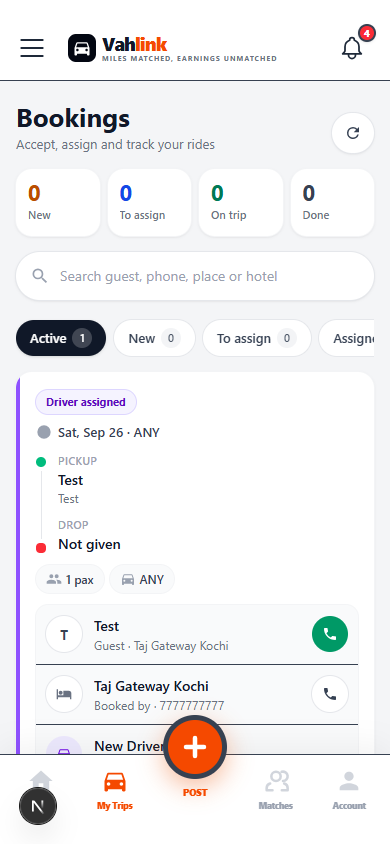
- Bookings / Jobs: when a hotel picks your offer, confirm it and assign an approved driver and vehicle. The counters at the top (New, To assign, On trip, Done) and the tabs filter the list; search finds a guest, phone, place or hotel. Each card shows pickup and drop, time, passengers, car type and one-tap call buttons for the guest, the hotel and the driver. Use Accept booking, Assign driver & vehicle, the Online / Cash switch once a driver is assigned, and Track live during the trip.
- Changed your mind before the hotel picks you? Press Withdraw offer on the request. After a booking is made, use Cancel on the booking (with a reason); the hotel is notified and the driver and vehicle are freed.
Taxi businesses
Wallet & payments
A small matching fee is taken from your wallet when a match is confirmed. Your paid balance is used first, then the bonus.
- Open Wallet and tap an amount (₹500, ₹1000…) to add credits.
- The secure Razorpay window opens: pay by UPI, card, net banking or wallet.
- Credits appear as soon as the payment is confirmed, and you get a notification. If you close the window after paying, the credits still arrive automatically.
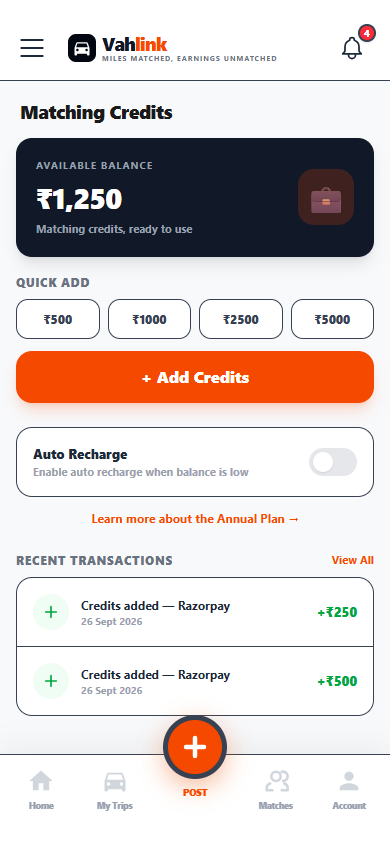
The Annual plan (₹999/year) is bought the same way from Plan.
Drivers
For drivers
- Log in with the details your taxi business gave you. Your trips are on the home screen.
- Switch yourself online/offline with the toggle at the top.
- Open Account → Share my location so dispatch can see where you are and send nearby trips.
Franchise partners
Franchise portal
Franchise admins and franchise staff land on the franchise portal after login. It shows your hotels and taxi businesses, where their taxis are right now (refreshes every minute), bookings in the last 30 days and your commissions.
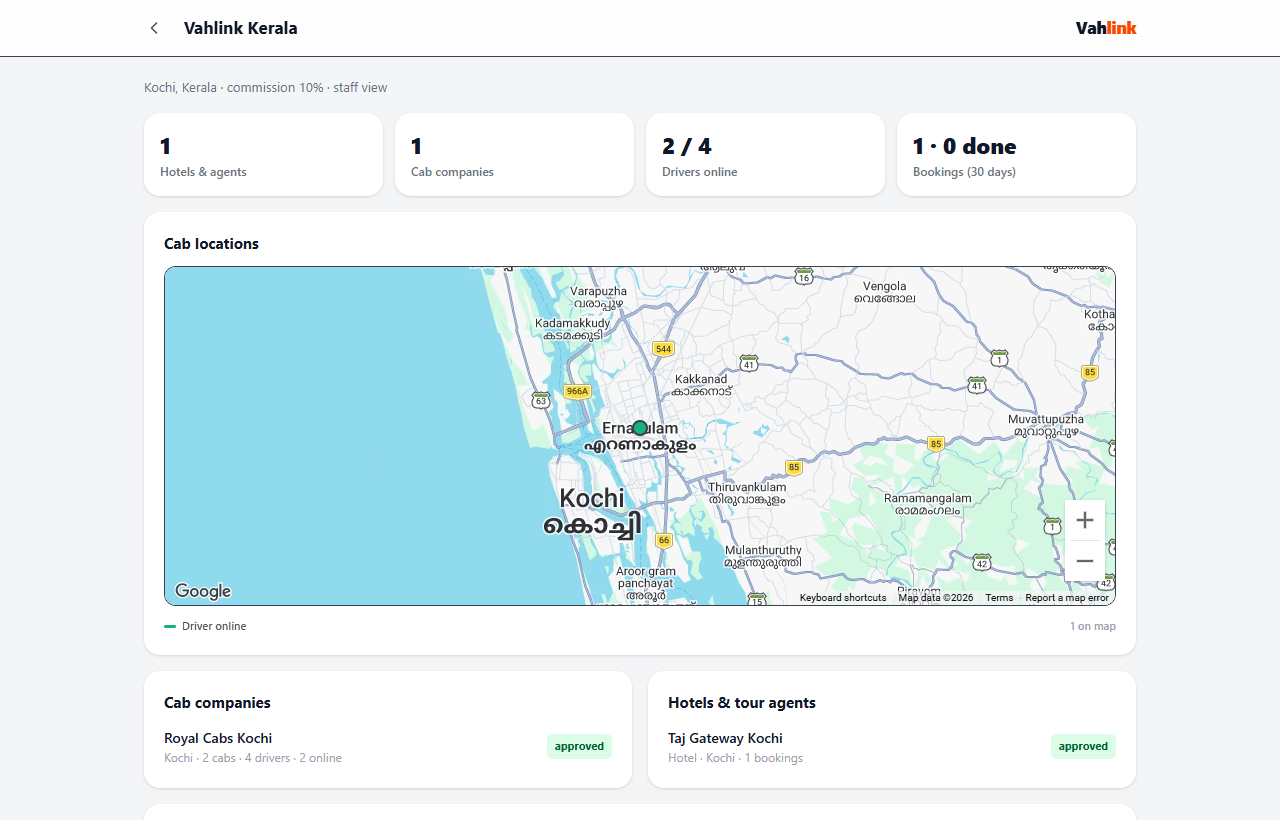
Franchise staff accounts are created by the Vahlink team (Admin → Team & roles).
Everyone
My account
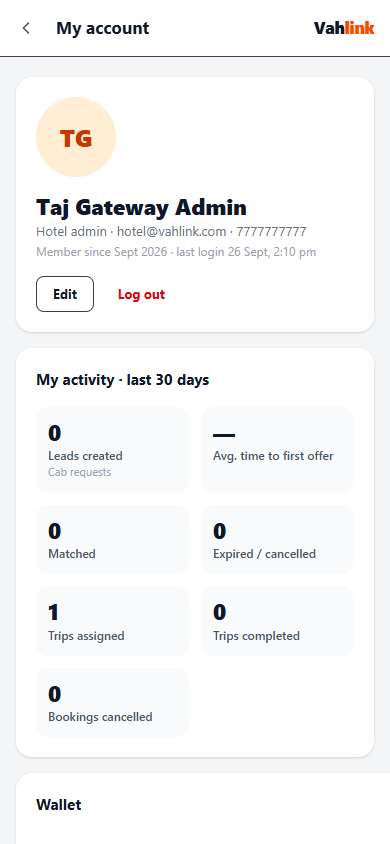
Open My Account from the menu. Everything about you is in one place:
- Profile: tap the photo to change it; Edit for name and phone.
- My activity (30 days): leads handled, average response time, offers won/rejected, trips assigned/completed, cancellations.
- Wallet balance and bonus.
- Refer & earn: your invite link and how many people joined with it.
- Alerts & notifications: Phone notifications on/off for this device (with Send a test notification), and switch each type on or off (bookings, leads, payments, tickets, announcements) — the switches apply to the bell and the phone.
- My location, Support tickets and Recent activity (logins with browser and device).
Everyone
Help & support
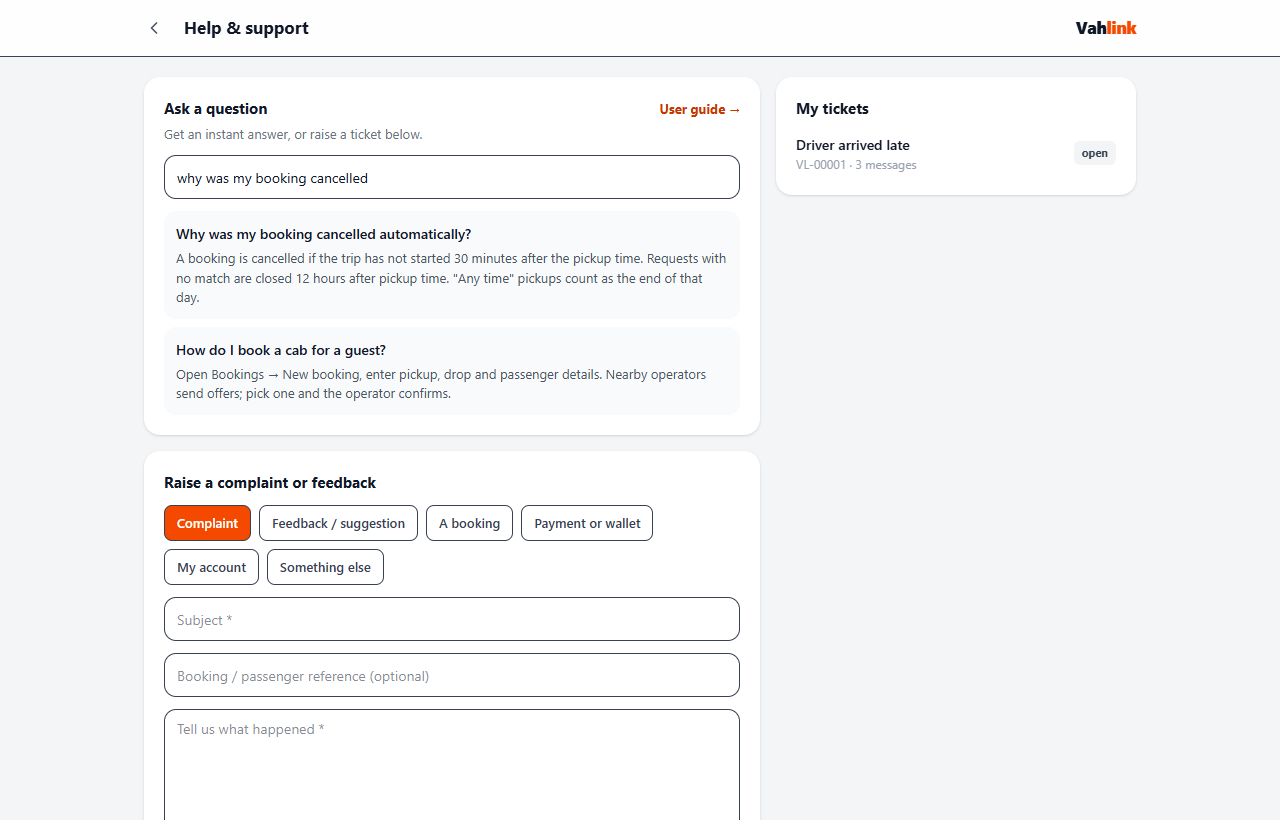
- Open Help & Support (menu, or vahlink.com/support — works without logging in).
- Type your question in Ask a question for an instant answer.
- Still stuck? Choose a category (complaint, feedback, booking, payment…), add a subject and details and press Send. You get a ticket number like VL-00012 and an email copy.
- Replies from our team appear under My tickets and by email. Reply there to continue the conversation.
Vahlink team
Admin console
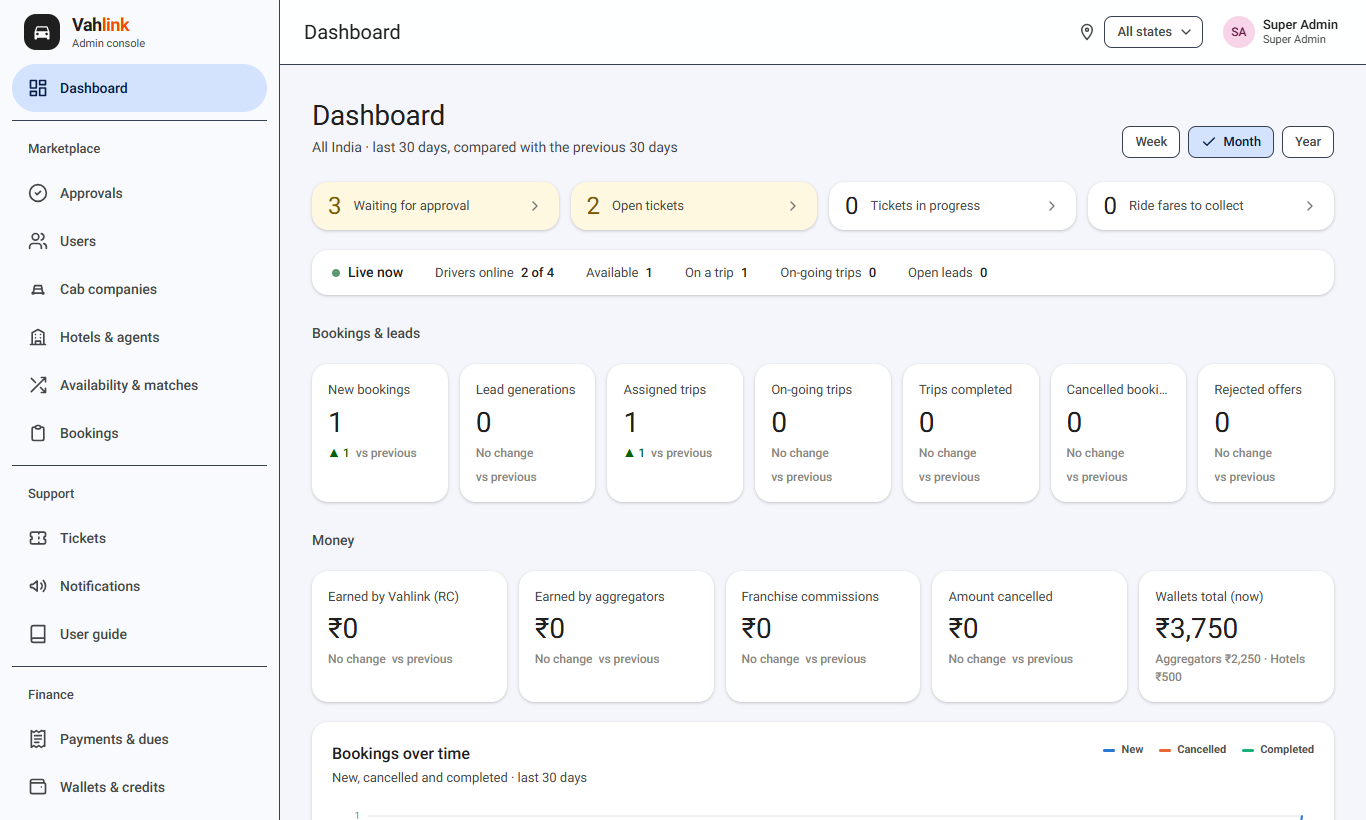
Sign in at vahlink.com/admin/login. What you see depends on your role (see Team & roles below). The left menu lists the sections; the top bar has the region filter and your account menu.
Dashboard
- Needs attention: approvals waiting, open tickets, fares to collect — click to jump there.
- Choose Week / Month / Year. Every figure is compared with the previous period (▲ better, ▼ worse).
- Bookings & leads, money (earned by Vahlink, aggregators, franchises; amount cancelled; wallets), trend chart, peak hours.
- Report by state: click a state to see its cities; CSV downloads the table.
- Platform & members: visitors (guests vs members), browsers, operating systems, web vs app, and members inactive for 30+ days.
State and city filter
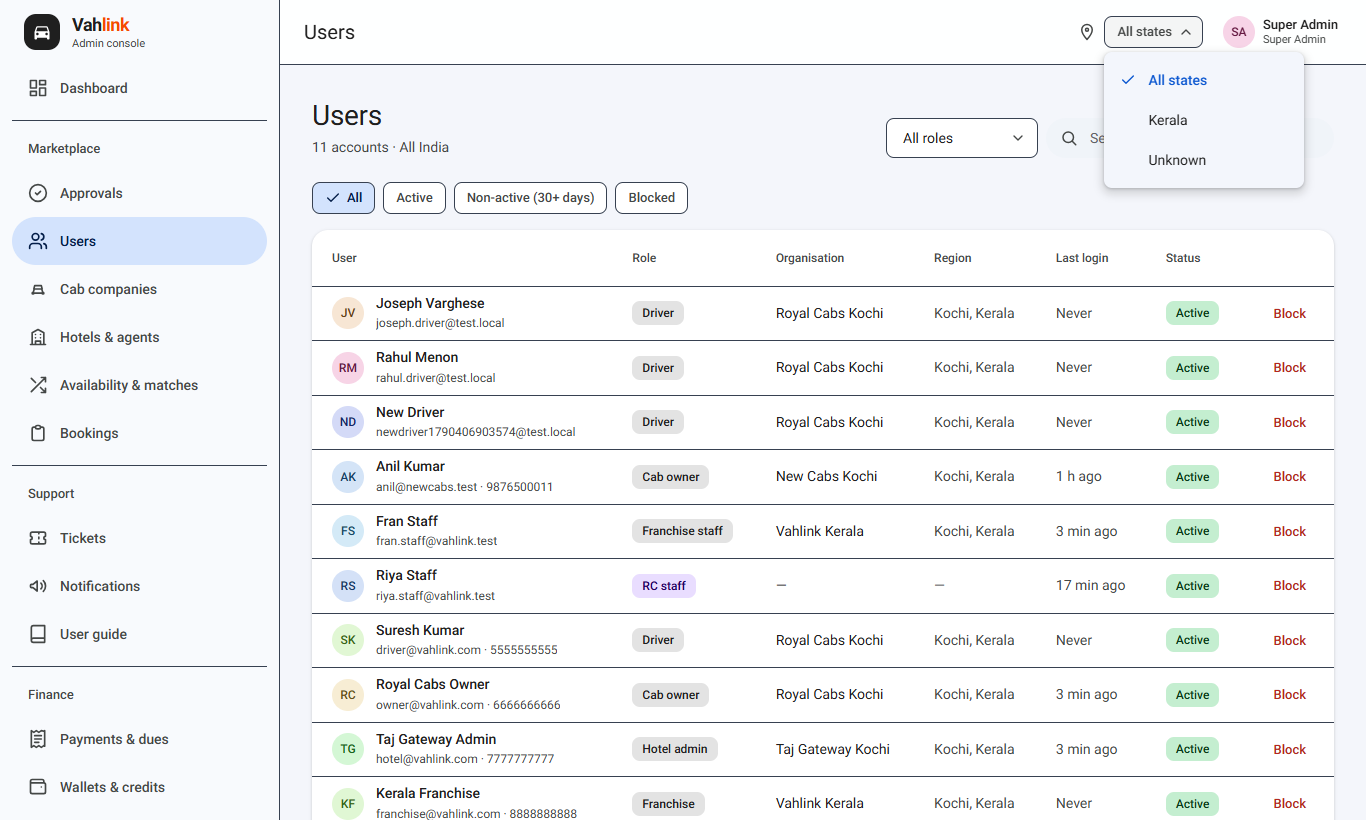
The All states chip in the top bar filters every admin section at once — dashboard, users, bookings, approvals, tickets, payments. Pick a state, then a city; press ✕ to clear. Your choice is remembered when you move between sections.
Vahlink team
Approvals
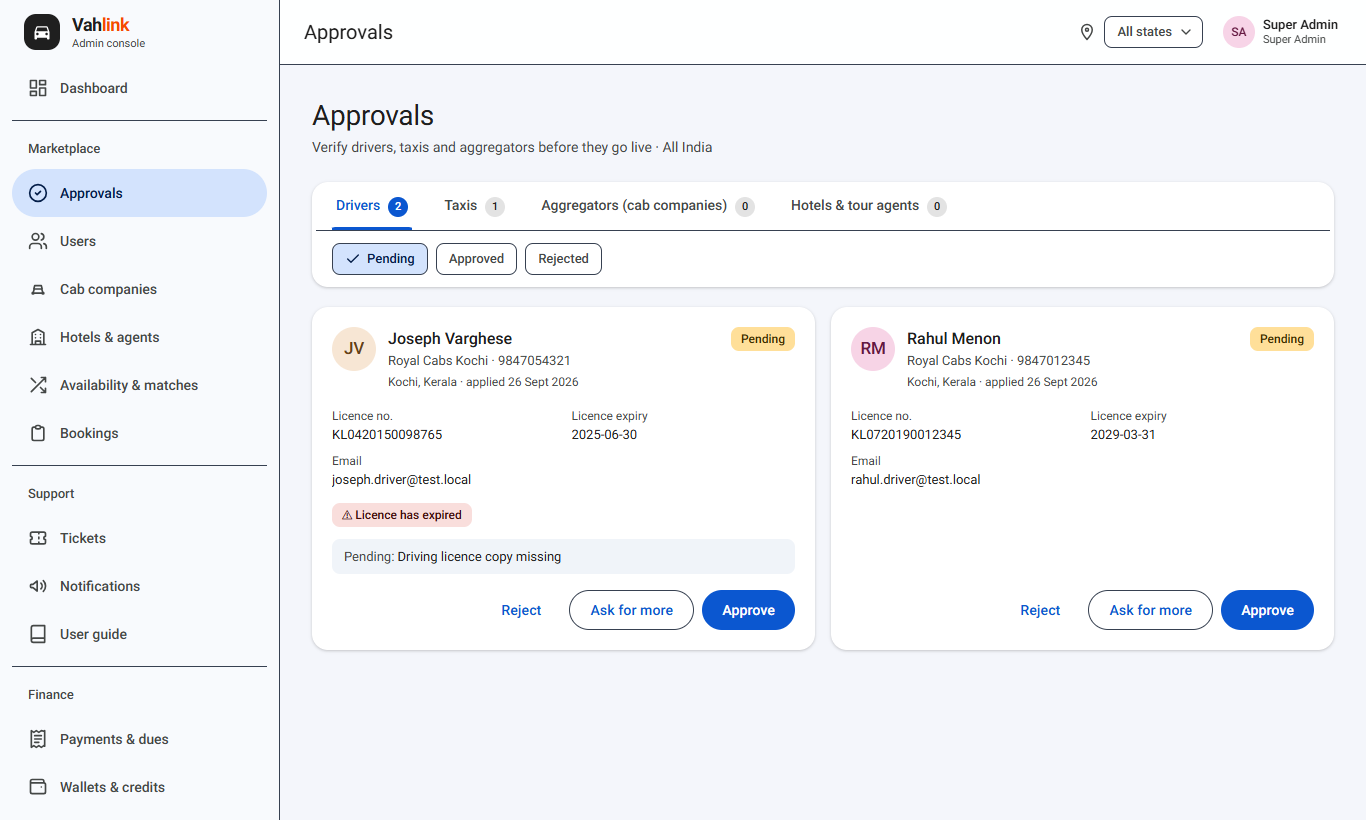
- Open Approvals. Tabs: Drivers, Taxis, Aggregators (taxi businesses), Hotels & tour agents — the number shows how many are waiting.
- Check the details on each card. Warnings such as an expired licence are highlighted.
- Approve, Ask for more (keeps it pending with a reason) or Reject (with a reason). Quick reasons are one tap. The owner is notified with the reason.
- For taxi businesses and hotels you can also set the Franchise they belong to.
Vahlink team
Users, team & roles
Users
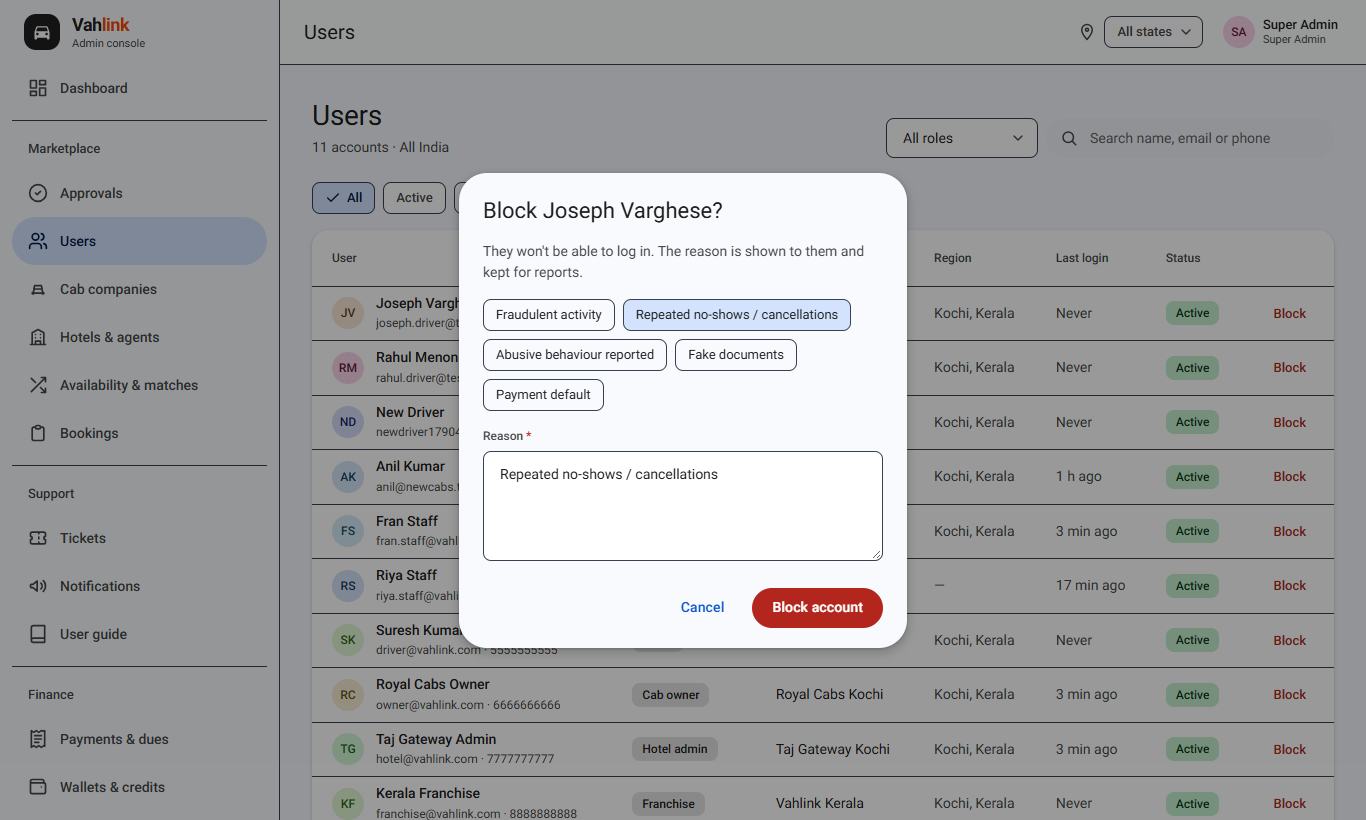
Filter by role and status — Active, Non-active (30+ days), Blocked — and search by name, email or phone. Block always asks for a reason; the person sees it when they try to log in. Unblock restores access.
Team & roles
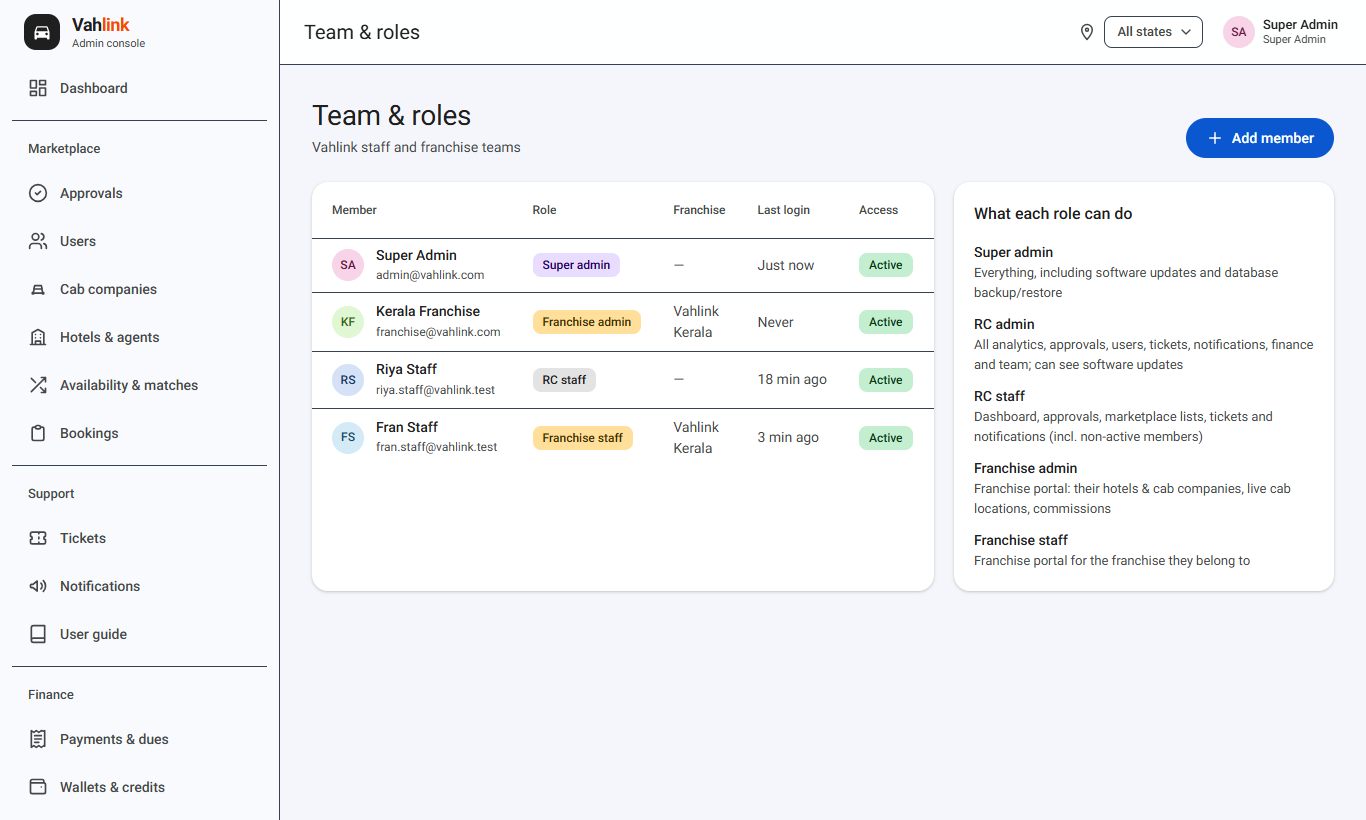
| Role | Can do |
|---|---|
| Super Admin | Everything, including Settings, software updates and database backup |
| RC Admin | All analytics, approvals, users, tickets, notifications, finance, team; reads software updates |
| RC Staff | Dashboard, approvals, marketplace lists, tickets, notifications |
| Franchise Admin / Staff | Franchise portal (their hotels, taxi businesses, live taxi map, commissions) |
Add member creates a staff account with a temporary password (share it privately). Remove access turns an account off without deleting it.
Vahlink team
Tickets & notifications
Tickets
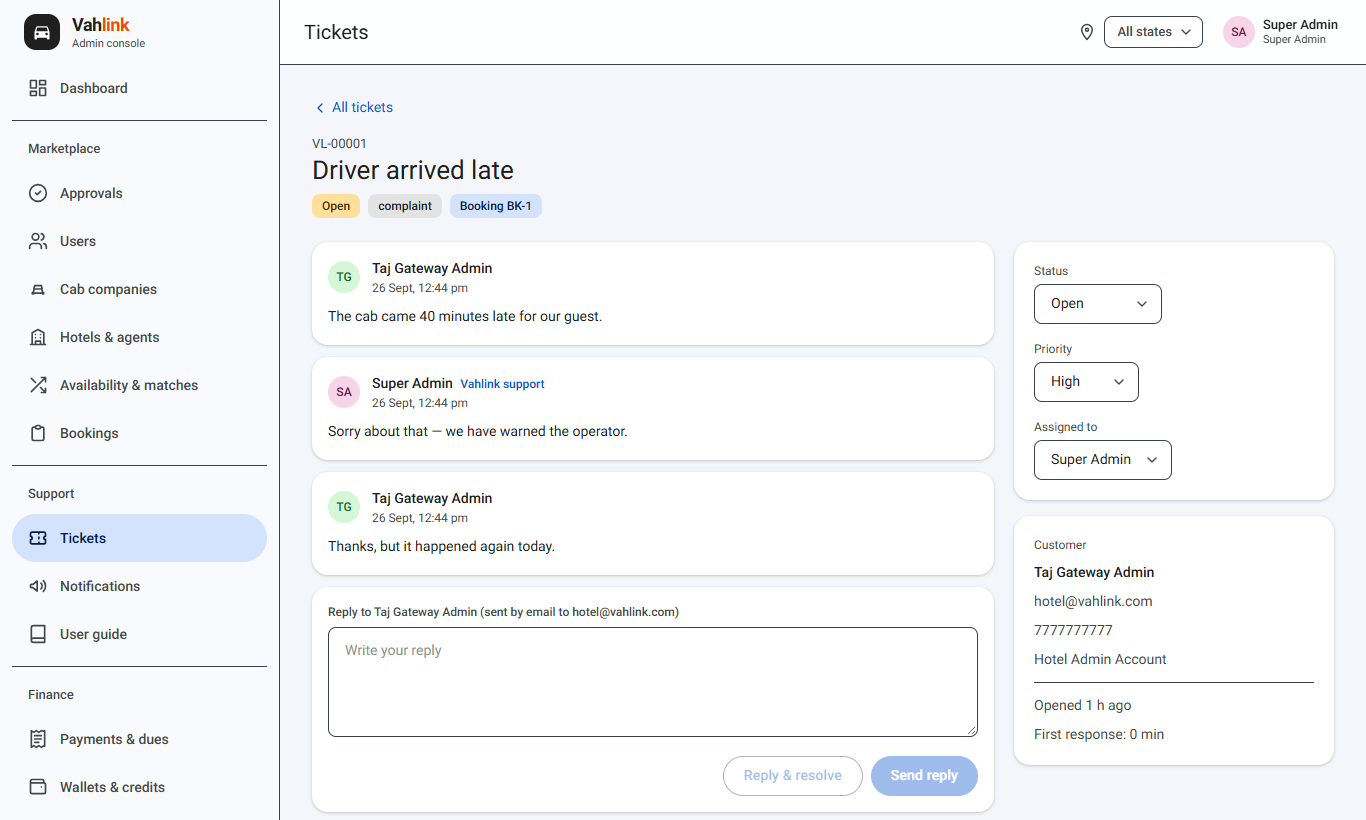
- Tickets lists complaints and feedback by status (Open, In progress, Resolved, Closed). Use Assigned to me to see your queue.
- Open a ticket to read the conversation. Set status, priority and who it is assigned to on the right.
- Write a reply and press Send reply (or Reply & resolve). The customer gets it by email and in the app. First-response time is tracked.
Notifications (announcements)
Write a title and message, choose who receives it (hotels, taxi owners, drivers, franchise, staff) and optionally only non-active members to win them back. The region in the top bar narrows the audience. You see how many people it reaches before you send.
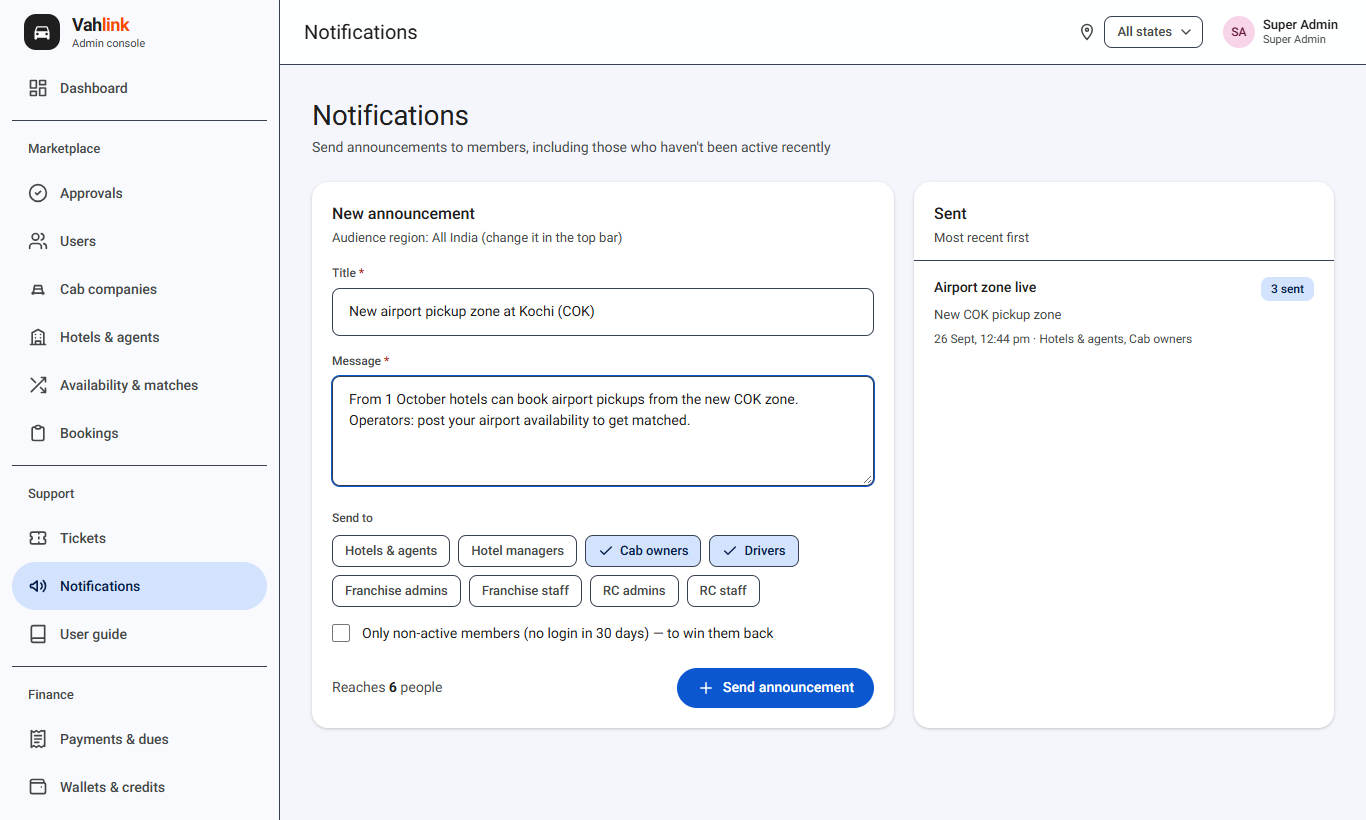
Announcements, like every in-app notification, also arrive as a phone notification for people who turned them on.
Hero banners
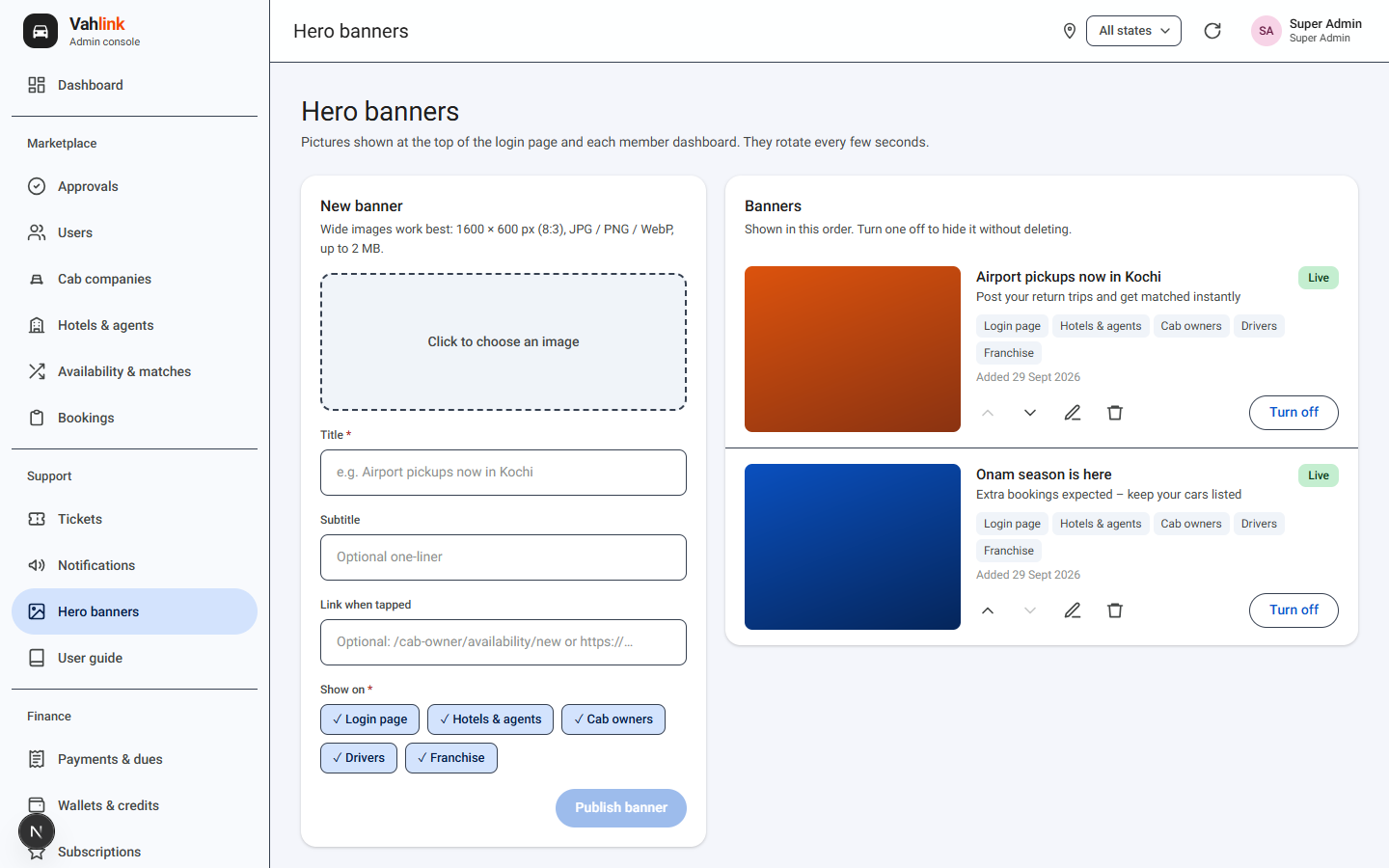
- Open Hero banners. Click the box to choose a picture (wide, about 1600 × 600 px; JPG, PNG or WebP up to 2 MB).
- Add a Title, an optional Subtitle and an optional Link when tapped (a page like /cab-owner/availability/new or a full https:// address).
- Under Show on pick where it appears: Login page, Hotels & agents, Taxi owners, Drivers, Franchise dashboards. Press Publish banner.
- Under Region keep Everywhere, or tap states. Tap cities inside a state to show it only there (use Add city for a city not listed); a state with no cities picked shows in the whole state. Members see banners for their current location (or their business address).
- On member dashboards the banners take the place of the Turn Empty Trips into Extra Income card; when none apply, that card shows. Banners rotate every few seconds in the order listed. Use the arrows to reorder, the pencil to edit, Turn off to hide one for now, or the bin to delete it.
Vahlink team
Payments & dues
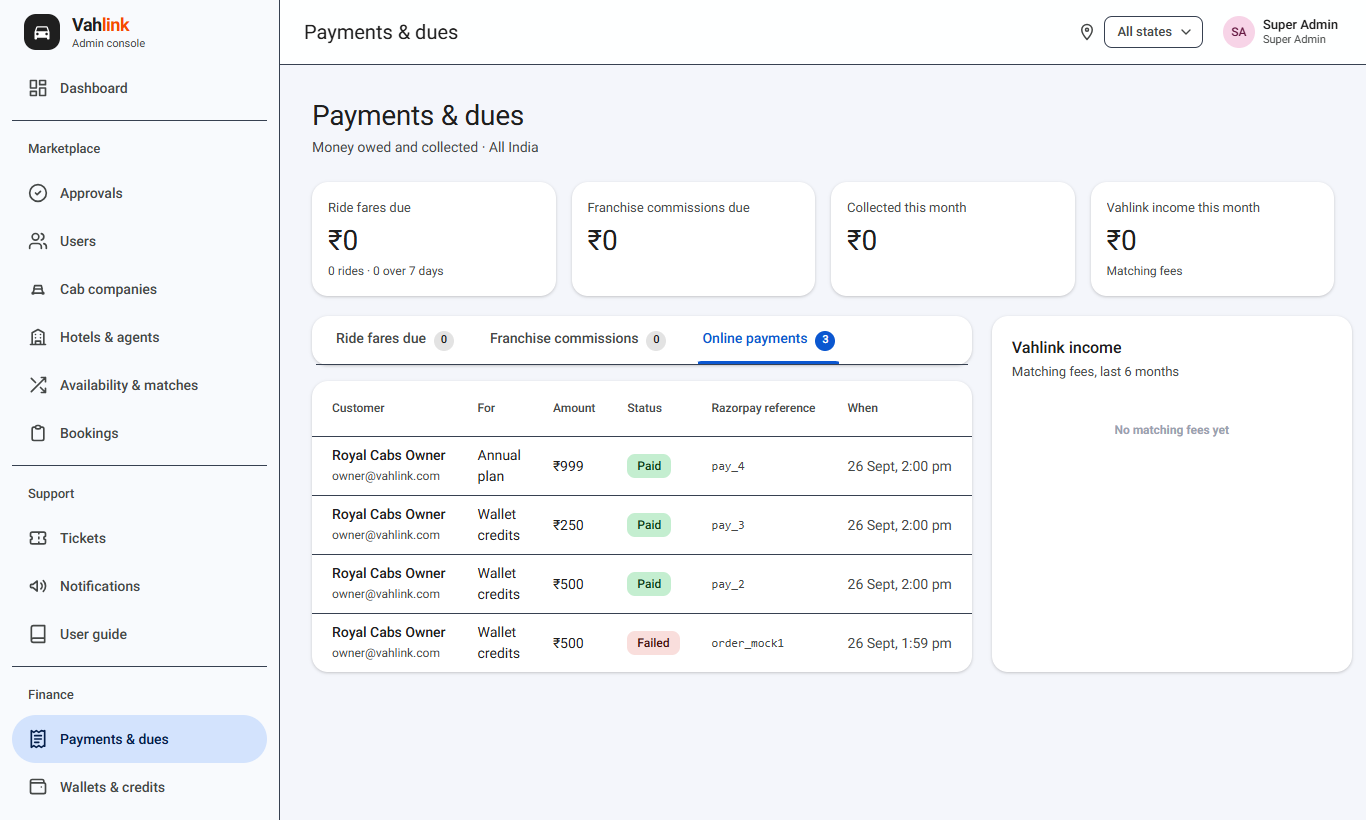
- Ride fares due: completed rides not yet collected; overdue ones are red. Mark collected when paid.
- Franchise commissions: commission owed to each franchise per month; Mark paid after paying out.
- Online payments: every Razorpay payment (wallet credits and annual plans) with its status and Razorpay reference.
- Vahlink income: matching fees for the last six months.
Super Admin
Settings
Admin → Settings holds the keys for sign-in, payments and email. Changes take effect within a minute — no redeploy. Secrets are shown masked (••••1234); leave a secret box empty to keep the saved value. Each card has a How to get these guide.
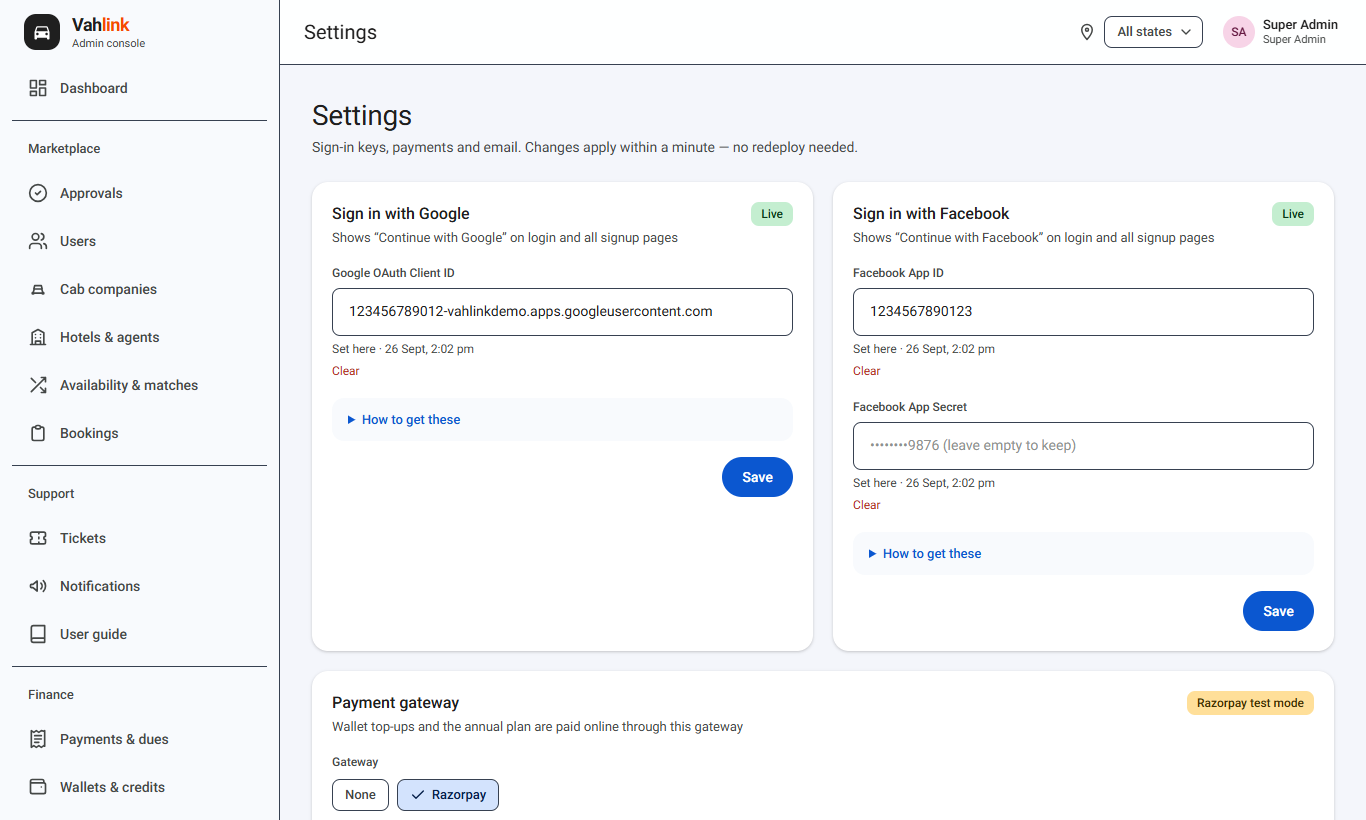
Sign in with Google
- In Google Cloud → Credentials create an OAuth client ID of type Web application.
- Add https://vahlink.com and https://www.vahlink.com as Authorised JavaScript origins.
- Paste the Client ID in Settings and Save. The Google button appears on login and signup.
Sign in with Facebook
- In Meta for Developers create an app with Facebook Login, allow the domain vahlink.com and switch the app to Live.
- Paste the App ID and App Secret in Settings and Save.
Payment gateway (Razorpay)
- In the Razorpay Dashboard → API Keys generate a key (start with Test mode).
- In Settings choose Razorpay, paste the Key ID and Key Secret, Save, and press Test connection.
- Add a webhook in Razorpay: URL https://vahlink.com/api/payments/razorpay/webhook, events payment.captured and order.paid, and paste its secret in Settings.
- Make a ₹100 test top-up. When it works, replace the test keys with Live keys.
Enter the SMTP details of the mailbox that sends ticket emails (for Gmail: smtp.gmail.com, port 587, and an App password), the “send as” address and the support inbox for new-ticket alerts. Press Send test to check.
Email OTP verification: switch it On and Save to make new email-and-password sign-ups confirm their email with a 6-digit code before they can log in. Google / Facebook sign-ups and existing accounts are not affected, and nothing is enforced until the SMTP details work.
Software updates
Admin → Software updates shows the running version and release notes. Super Admin publishes notes; RC Admins can read them.
Vahlink user guide · updated September 2026